


How To
This page will show you how to manage the Members / Body including how to add new members and delete existing ones from your account.
📝
New members? Learn how to complete your first-time sign-up and get started with your dashboard.
Go to Onboarding Guide
Adding Members/Body
You can add new members to your account in two ways:
Option 1 — Share Your Referral Link

1. Go to your Membership Dashboard.
2. Copy your referral link.
3. Share it with the person you want to invite.
When they register using your link, they’ll automatically be added to your account.
✅ Ideal for sharing on social media or sending directly to friends or team members.
Option 2 — Send an Invitation

1. Go to the Send Invitation area in your dashboard.
2. Enter the email address of the person you want to invite.
3. Click Send Invitation.
✅ Great for inviting people directly through the system.
Deleting Members
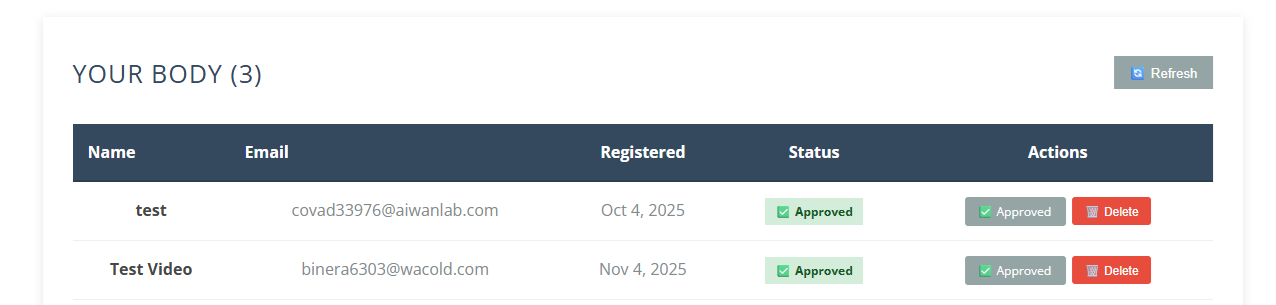
Step 1: Open the Membership Dashboard in your account.
Step 2: Find the member you want to remove.
Step 3: Click Delete.
Step 4: Confirm when prompted.
✅ The selected member will be permanently removed from your account.
⚠️ Important Disclaimer
Members cannot be added manually.
All new members must join using your referral link or an email invitation sent from your dashboard.
Understanding Your Statistics
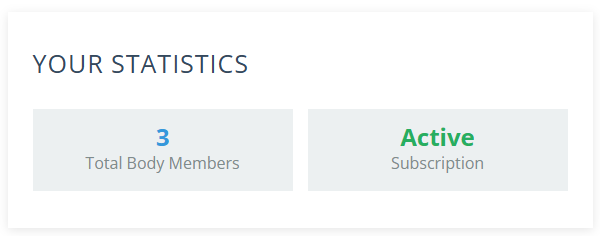
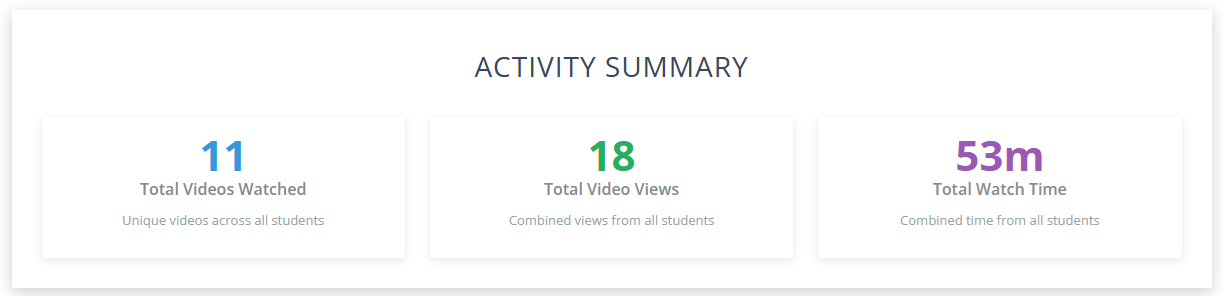
Below is a simple guide explaining what each number in your dashboard means. This helps you understand how your group is engaging with the content.
Total Body Members
The number of people who have signed up using your referral. Each member is counted once, even if they log in multiple times.
Subscription Status
Shows if your membership is currently active.
An Active subscription gives you full access to all content.
Total Videos Watched
The number of videos your group members have watched.
Total Video Views
The total number of times your videos have been played — including repeat views.
Example: one video watched 3 times = 3 views.
Total Watch Time
The combined total time your group members have spent watching your videos.